Showing posts with label free plugins. Show all posts

Create instant photoreal snapshots with Visualizer

Simple, fast, fun: three adjectives we often use to describe SketchUp. They also fit pretty well for Visualizer, an extension that provides instant photographic previews of SketchUp models and exports fast, clean photoreal images. You know, delicious stuff like this:
3D Warehouse model of the Sydney Opera House, processed in about 60 seconds with Visualizer.


Share:

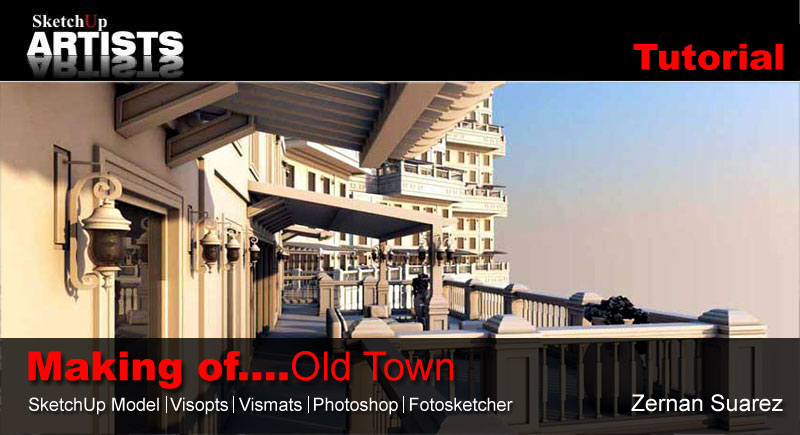
Making of Old Town – Day, Night (V-Ray Tutorial)

3D Vizualiser and Graphic designer Zernan Suarez has produced this tutorial for us, covering scene set-up, materials, both day and night renders and NPR. Software used includes SketchUp, V-Ray for SketchUp, Photoshop and the freeware filter software FotoSketcher. Included in this comprehensive tutorial are downloads to help you follow along if you wish.
Share:

Best SketchUp renderers comparison

In this review we'll compare four popular rendering solutions for SketchUp. The initial criteria as to which products were selected included the need for a trial version to be available, and the renderer needed to be accessible from within SketchUp, so it needs to include an actual plugin. The renderers we picked were Indigo Renderer, SU Podium, Maxwell and V-Ray.


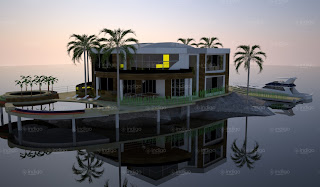
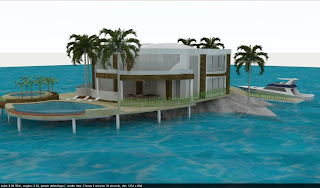
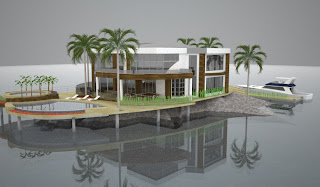
The test scene was fairly simple, a house next to water with a boat, one of the most popular models in the 3D Warehouse that Google offers, created by Andres. The process we then go through for each renderer is the same, and is what most users who are fairly new to making renders with SketchUp would do. We first find the plugin, download it, install it, then start doing test renders of our scene. Note that none of these tests included in-depth tweaking of materials, as the purpose of the review is comparing their features and qualities out of the box.

Indigo Renderer
Indigo Renderer was the first in line, and the installation process is fairly simple. You have to download two components for it to work. First, there's the Indigo Renderer standalone software, then there's the SketchUp plugin. Once both are installed, you simply fire up SketchUp and selectRender from the Plugins menu. On the first run, it will ask you to locate the indigo.exe file. This can be somewhat of a pain if you forgot where you installed the standalone product, but it's usually under C:\Programs Files\Indigo Renderer. Once that's done, the render starts almost immediately.

On this system, to make a render of 1374 x 804 pixels resolution, Indigo took over an hour, although after around 20 minutes most of the noise was gone, and you can save the resulting image at any point. To start tweaking the result, you can go in the Plugins menu and change the settings, including the size of the render and the exposure. There's also a built-in material editor which allows you to modify the SketchUp materials and add additional attributes like reflection, roughness, bump mapping, and so on.

When you start tweaking, you can gain much better results, and depending on the version you buy, you can have some advanced settings available to you. The demo places watermarks on your images but otherwise seems fully functional. The full software costs €145 or €595.


SU Podium
The next renderer we took a look at was SU Podium, which is also one of the oldest options available for SketchUp. The installation of this one is even easier, because there isn't two separate downloads, it's just one plugin. Once you download and install the product, you can start SketchUp and render right away.

The good news is that the render only took 2mins 10secs on default settings. The bad news is that the result looked much worse. Also, there seems to be less options available, although like every other product it comes with its own material editor. The demo also restrict the size of your render, although it doesn't put a watermark on it. The full version is available for $198.


Maxwell for SketchUp
Maxwell is well known for it's standalone product, but only recently did the company release its SketchUp plugin. The installation is much worse than the previous two options. There is no setup file, instead you download a zip file, and then have to read through a readme text, copy files to a specific directory, and install MSVC libraries. Once it's installed however, it worked similarly to the previous choices. Under the Plugins menu, you select Maxwell Fire to start rendering.

The render took 8 minutes to finish, and was fairly good, certainly better than SU Podium, although no sky was generated, unlike Indigo. Also, the image seemed to have more noise overall. They do win on the price point however, with two versions of the plugin, one free which has a maximum resolution of 800 pixels, and one at $95.


V-Ray
V-Ray is the professional solution, the gold standard used by many studios all over the world. But on top of their high grade Autodesk plugins, they also offer a SketchUp plugin as well. The demo can be downloaded after you register on their site, and works for 30 days. The installation is simple, a single download file that you run. One thing I did notice however is that it slows down SketchUp's loading time.

With default settings, a render took 6 minutes, and the quality is somewhat average. Certainly it looks better than some of the previous products, but the default water is left as is, and the bright colors are as well. Fortunately, V-Ray seems to offer the most options and material features of the four reviewed products, allowing very fine grain modifications. On the negative side however is the price, around $800, depending on the reseller.


In closing, it's important to note that all of these renders were done with default settings and materials. If you wish to do high quality SketchUp renders, you would need to dig into the specific material editor of your chosen plugin, and modify them accordingly. Still, it does give a good idea of the default results, and render speeds.

Share:

SketchUp script clips #1: Setup and basic ideas


 In this series of posts, I will be exploring how one can create scripted geometry in SketchUp. Traditionally, this has been more the realm of programs like Rhino. And justifiably so. Rhino is NURBS-based and can create and modify curved geometry much better than SketchUp. However, SketchUp is an easy-to-use program for working with polygon-mesh-based geometry. It also has a built-in scripting language (Ruby) and best of all – it’s free. So if you want to script SketchUp to automate small tasks or to create interesting geometry, then this may be a good series of posts to follow.
Share:

SketchUp Plugins: Extruding and Offsettin Curved Faces

The new sketchup plugin! Extruding and Offsettin Curved Faces!
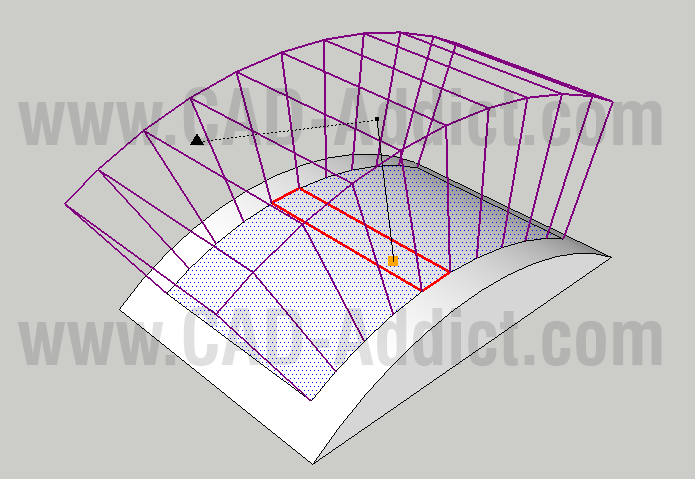
The Joint Push Pull plugin created by Fredo on SketchUcation.com is a useful tool to use the push pull command on curved surfaces. There are times that you need to do this and the original tool provided by SketchUp will not work on surfaces if they have even a slight curve to them. Joint Push Pull solves this dilemma.
Share:

Laser Scans in Google SketchUp

Pointools has just announced the availability of a new plug-in for Google SketchUp. This would seem to be quite a statement about the level of demand for point cloud data by Google SketchUp customers.
Share:

Mover for Sketchup

Share:

DrawMetal

Metalwork Design Tools

DrawMetal™ provides plugins (extensions) for Google SketchUp® that draw a variety of spirals, curves and tapered shapes (tapered extrusions).

Share:

Creating a Spring - free spring plugin

The Spring Plugin allows you to create springs or coils of any length, pitch, diameter and gauge; using a simple dialog box to input the required dimensions. Springs can be used in a variety of engineering, architectural and sculptural applications. To get the free Spring Plugin, click the download link below and follow the on-screen instructions.
Share:

Plugin: Instant Roof, instant productivity

Instant Roof, by Chuck Vali of Vali Architects, is a truly great SketchUp Ruby script. Its purpose is simple – you use Instant Roof to quickly create gables, hips, sheds and trellises anywhere you need them. This script has everything going for it:
It's easy to install. Pop one file into your plugins folder and you're done.
It's easy to learn. Chuck (the script's author) has put together a huge pile of fantastic instructional PDFs and videos on his website. The in-product help is also comprehensive and well-placed.
It's easy to use. Everything's right there in the Plugins menu, so you don't have to memorize and keep track of a bunch of little tool icons. The input method for telling the script where to put gables and sheds couldn't be simpler.
Share:

Making your rounded models look better

When you're working with rounded objects whose edges have been smoothed, it's sometimes hard to make things look good. That's because curved surfaces don't automatically produce a profile edge that helps to differentiate them from the background. You can see what I'm talking about in the images that follow; notice the (what I consider to be) unsatisfying outline of each of the rounded objects below?
Without Profiles turned on, rounded objects don't stand out.
Share:

Free models

FREE Chair
FREE Model chair
Click to download
Share:

Interesting plugins for sketchup from sketchyphysics


Jim has released Find Shadow Window which resets the Shadow dialogue box when it decides to vanish off screen. A real handy Plugin to have for those who move their windows around the workspace. Currently it’s PC only.
Share:

OpenStudio Plug-in for Google SketchUp

OpenStudio Plug-in for Google SketchUp makes it easy to create and edit the building geometry in your EnergyPlus input files. This free plug-in also allows you to launch EnergyPlus simulations and view the results without leaving the Google SketchUp 3D drawing program
Share:

What's New in Google SketchUp 8

What's New in Google SketchUp 8

We've stuffed SketchUp 8 full of new and improved features:
Share:

Google Launches SketchUp 8 3D Modeling Software

Google on Wednesday announced a new version of its 3D modeling software, SketchUp 8.
New features include model geo-location integration with Google Maps, more accurate terrain and color aerial imagery, improved photo matching for model building, and integration with Google Building Maker, a 3D modeling tool for adding buildings to Google Earth.
Share:

Urban Developer


Urban Developer uses a model based approach with objects such as project plans, sub plan areas and real-estate objects which have their own user interfaces and calculations. These properties can be accessed via the context menu within SketchUp. A project tree gives an overview of all the objects that are available on the urban development plan and charts area available to see the characteristics of the whole plan or its objects.
Installation of Urban Developer 2.1 Software Perquisites-
  • Windows 2000, XP, Vista, Windows 7
  • Microsoft .Net framework
  • Google SketchUp 7
  • Adobe Flash
Visit Urban Developer to learn more and get the plugin.
Share:

RPS RpReports


RpReports is a plug-in for SketchUp which lets you create your own applications with customized attributes, predefined attributes for components, and reports.
  • Define attributes for your application, such as manufacturer, part number, description, building, floor, and price. Some of these attributes are fixed for each component definition, and some can be set for each component instance.
  • Create a library of components for the users of the application to place.
  • Define the base and default attributes for each component.
  • Specify totals and sub-totals and other report customization.
This plug-in was created by Render plus System. The SketchUp model that you see on your screen is what will be rendered – with the same view, colors, materials, etc. You can render at the SketchUp image size, or at any other image size desired.
Visit RpReports to learn more and get the plugin.
caddboss
Boothy-Food Technology
Share:

IES VE SketchUp plugin

The Integrated Environmental Solutions VE SketchUp plugin allows you to assign important information like location, building type, room type, construction types and HVAC systems to a SketchUp model and then import it directly into an IES tool for analysis, without having to re-build any geometry.
Key features:
1.Export groups and components from Google SketchUp™
2.New Toolbar icons
3.Color code rooms on 3D model to visualize results and input data
4.Ability to view weather data as wind rose
5.Unique ability to view MacroFlo bulk airflow on 3D model as arrows
6.Unique ability to view MacroFlo bulk airflow on 3D model as arrows
IES have come up with a plug-in for SketchUp that allows you to run an energy analysis right within your SketchUp model. And the plug-in is completely free! Join Mike in this first part of a 2-part series as he shows you how to run an energy analysis on a massing model using the IES plug-in for SketchUp.

CMSH Tripod IESVE

Museum

Share:

Popular Posts

Google SketchUp is software that you can use to create 3D models of anything you like.On this blog you can find mostly furniture 3d models. sketchup, 3d models , sketchup models, sketchup components, .skp models, sketchup model , free sketchup models , furniture models , 3d models

Followers

Category

Recent Posts

Label Cloud